Support
DayCast Support
DayCast: Plan + Reflect is an encrypted planner, notes, journal, spending, and PDF app for iPhone, iPad, Mac, Apple Watch, and the web, with an Android version on Google Play. Built and published by JC Mobile App Studio LLC.
On iPhone, iPad and Mac: email to note and the web app
With Web & Email turned on, you get two things:
- Your own DayCast email address. Anything you send to it shows up as a note.
- DayCast in any web browser, on any computer, at daycast-web.pages.dev.
It takes about two minutes. You need the App Store version of DayCast (version 1.9.3 or later) and to be signed in to iCloud on your iPhone or iPad.
On your iPhone or iPad
-
1
Open Web & Email
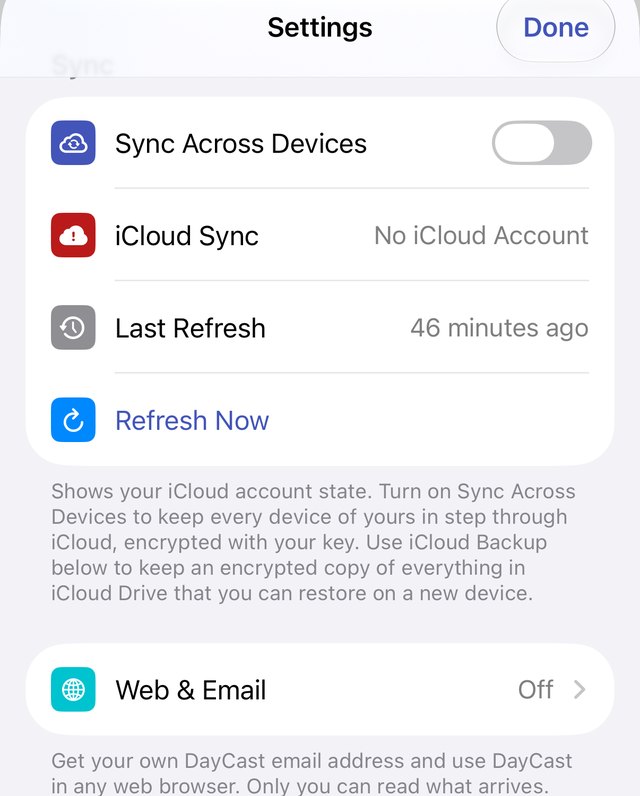
In DayCast, tap the gear to open Settings, scroll down to the Sync section and tap Web & Email.
-
2
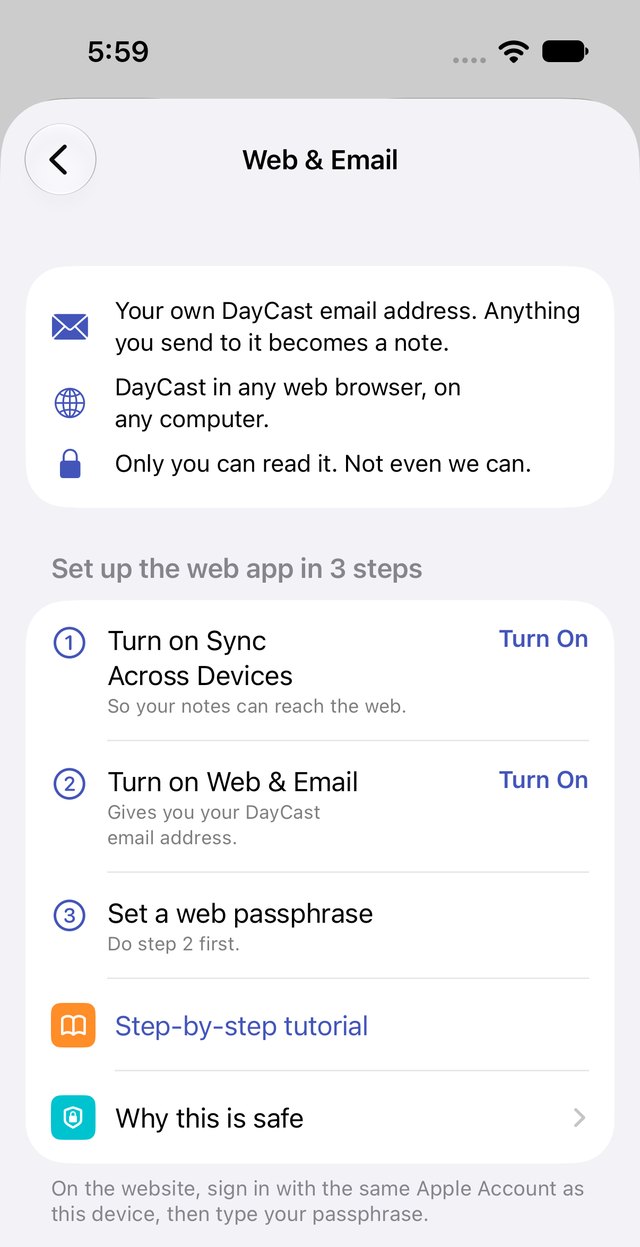
Follow the three steps on the screen
The screen lists three numbered steps. Do them in order. Each step is a button: tap Turn On or Set on its right.
-
3
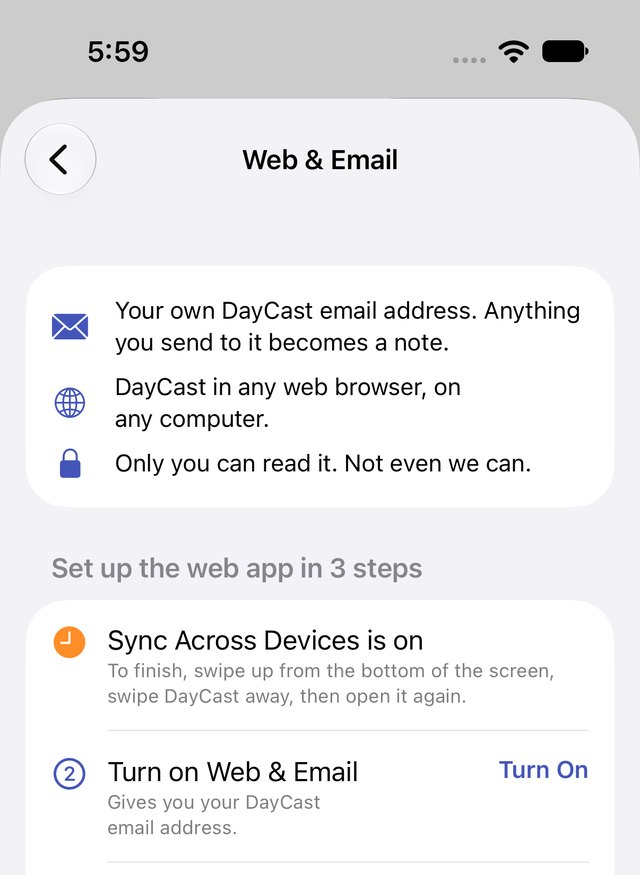
Turn on Sync Across Devices, then reopen DayCast
Tap Turn On next to the screen's step 1. An orange clock means one more thing is needed: close DayCast and open it again. To do that, swipe up from the bottom of the screen, swipe DayCast away, then tap its icon. On a Mac, press Command Q and open it again.
The web app shows the copy of your data that syncs through your iCloud, which is why this comes first.
-
4
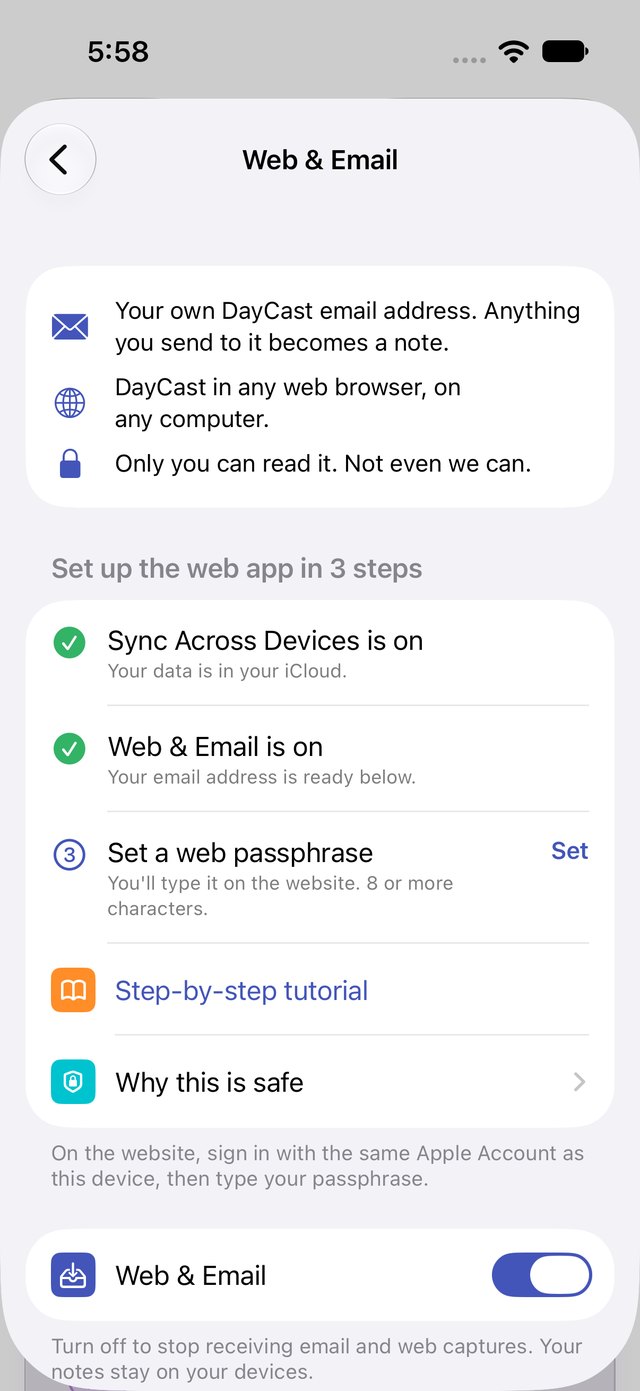
Turn on Web & Email
Go back to Settings, then Web & Email, and tap Turn On next to the screen's step 2. After a moment it gets a green check, and a welcome note arrives in your Notes.
-
5
Find your DayCast email address
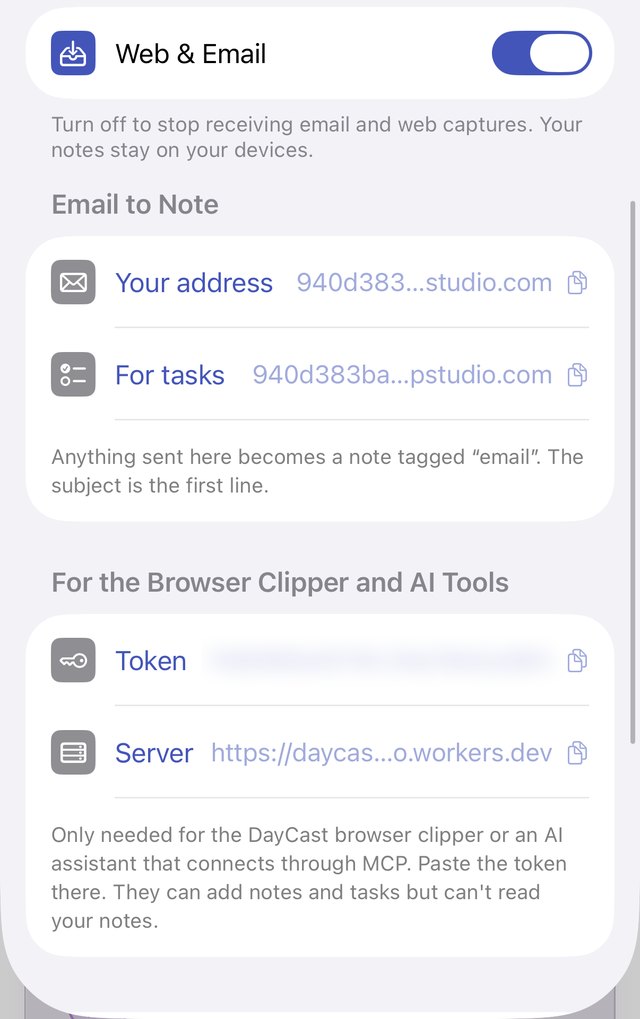
Scroll down to Email to Note. Tap the copy button next to Your address and save it as a contact. Anything you email there becomes a note tagged "email", with the subject as its title. Use the For tasks address to create tasks instead.
-
6
Set a web passphrase
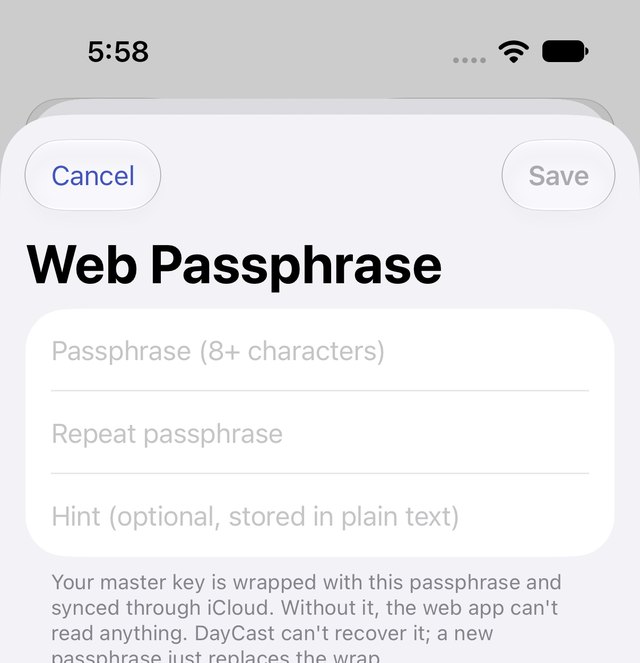
Back at the top, tap Set next to the screen's step 3. Choose 8 or more characters you can type easily on a computer, type it twice and tap Save. Write it down somewhere safe: we can't recover it. If you forget it, just set a new one here, and nothing is lost.
On your computer
-
7 Sign in on the website
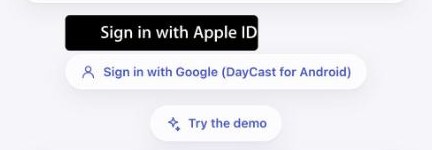
Open daycast-web.pages.dev and click Sign in with Apple ID. Use the same Apple Account as your iPhone. Apple handles this sign-in; DayCast never sees your Apple password.
-
8 Type your passphrase and click Unlock
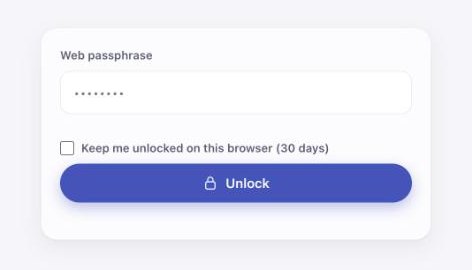
Type the passphrase you just set. On a computer only you use, tick Keep me unlocked on this browser so you are not asked again for 30 days. On a shared computer, leave it off and click Lock when you are done.
-
9 You're in
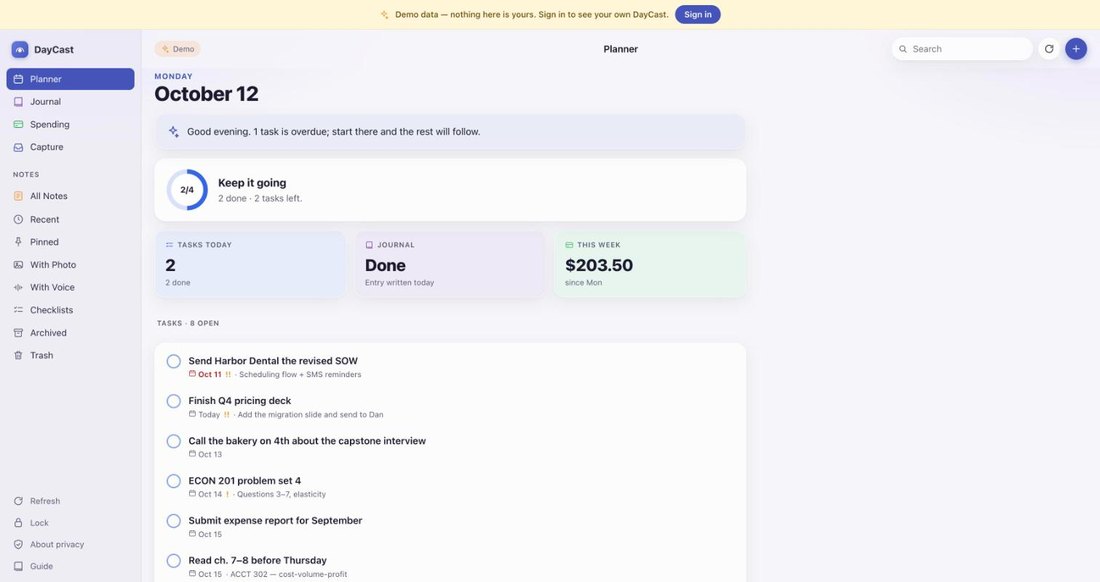
Your planner, notes, journal and spending open in the browser. You can edit notes, check off tasks, and add new notes and tasks that appear on your iPhone. Want to look around first? Click Try the demo on the sign-in page.
On Android: sync, email to note and the web app
On Android, DayCast keeps your devices in step through your own Google Drive, and the same setup gives you your DayCast email address and the website. You need DayCast for Android version 2.2.2 or later.
-
1
Open Settings, then Sync
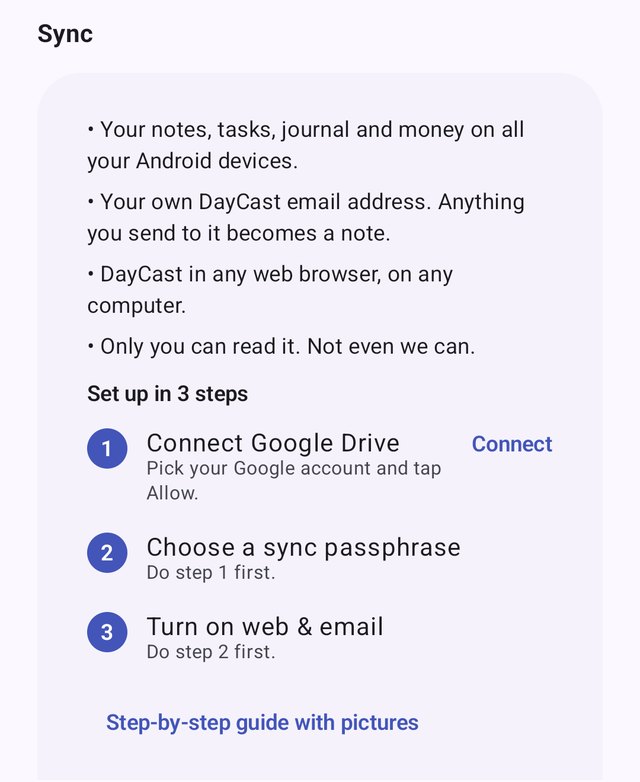
In DayCast, tap the gear and scroll down to Sync. You'll see three numbered steps. Do them in order; the blue word on the right of each step does it.
-
2
Connect Google Drive
Tap Connect, pick your Google account and tap Allow. DayCast only gets its own private folder in your Drive; it can't see your other files.
-
3
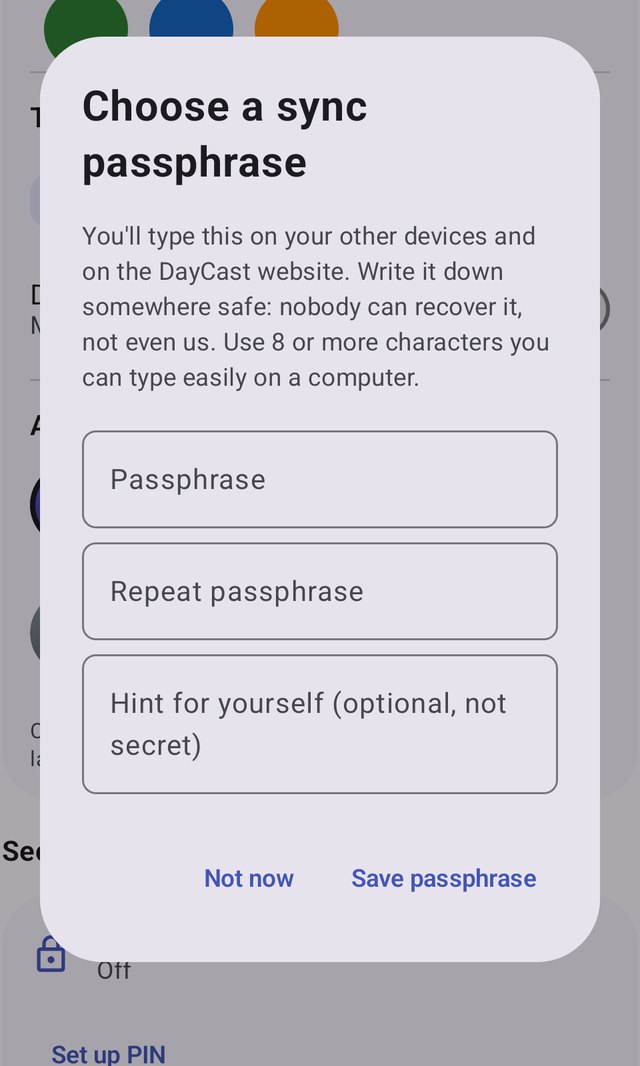
Choose a sync passphrase
A box opens right away. Type a passphrase twice and tap Save passphrase. Use 8 or more characters you can type on a computer, and write it down: nobody can recover it, not even us. On your other Android devices, connect the same Google account and type the same passphrase.
-
4
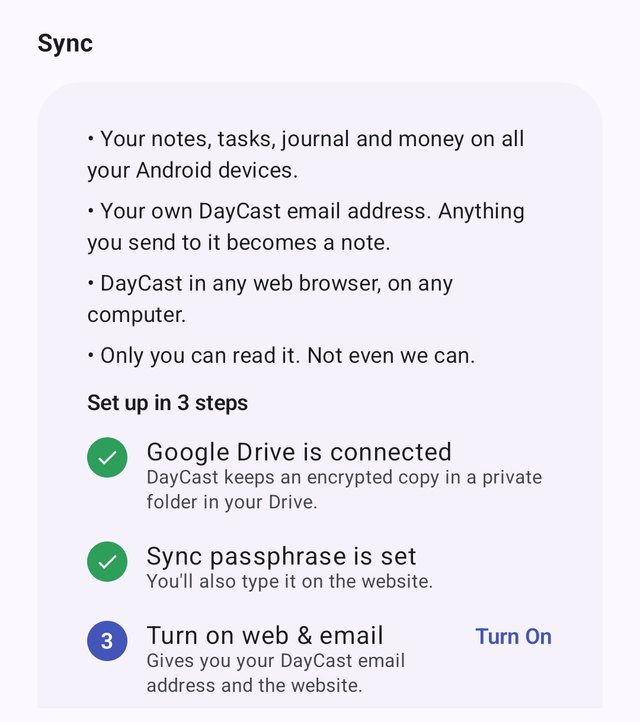
Turn on web & email
Steps 1 and 2 now have green checks. Tap Turn On next to step 3.
-
5
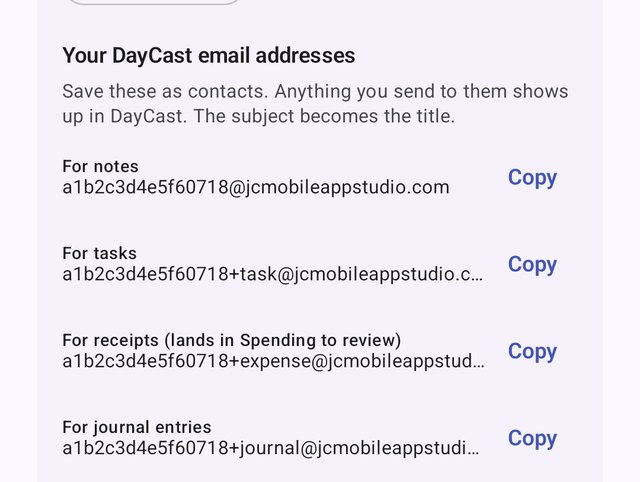
Find your DayCast email addresses
Scroll down to Your DayCast email addresses and tap Copy to save them as contacts. Email the first one for notes, or the others for tasks, receipts and journal entries.
-
6
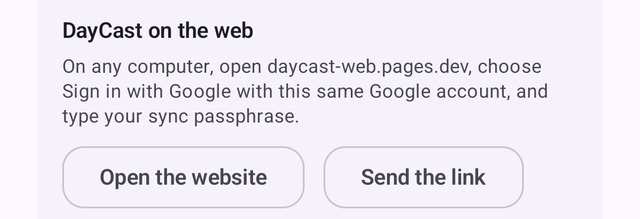
Open DayCast on your computer
Tap Send the link to send the website to your computer. There, open daycast-web.pages.dev, click Sign in with Google (DayCast for Android) with the same Google account, and type your sync passphrase.
Email or website not working?
I sent an email but it isn't in Notes.
Open DayCast, go to Settings, then Web & Email, and tap Check Inbox Now. DayCast also checks every time you open it.
Still nothing? Make sure "Web & Email is on" has a green check and that you sent it to the address under Your address, exactly as shown. New emails usually arrive within a minute.
I can't tap the steps, or nothing happens.
Update DayCast from the App Store. Version 1.9.3 made each step a button. On older versions, turn on Sync Across Devices in Settings, then Sync, and use the Web & Email Capture switch below the checklist.
"Turn on Web & Email" doesn't stay on.
DayCast couldn't reach your iCloud. Open the Settings app on your iPhone, tap your name at the top and check that you are signed in and that iCloud is on. Then tap Turn On again.
The website is empty or says "No synced data yet".
Sync isn't running yet. Turn on Sync Across Devices, then close DayCast completely and open it again. The first sync can take a few minutes with a large library. Then reload the website.
The website says "No web passphrase yet".
Set a web passphrase on your iPhone (Settings, then Web & Email), wait a minute for it to sync, then reload the website.
I forgot my web passphrase.
On your iPhone, open Settings, then Web & Email, and tap Change Passphrase. The new one replaces the old one right away. Your notes are safe; the app still has your key.
Android: I forgot my sync passphrase.
Nobody can recover it, but nothing on your phone is lost. On a device that is still syncing, open Settings, then Sync, and tap Disconnect with "Also delete my encrypted copy from Drive" ticked. Then do the three steps again with a new passphrase, and type the new one on your other devices.
Android: "Turn on web & email" says it couldn't turn on.
Check your internet connection and try again. Steps 1 and 2 must have green checks first.
Is the web app safe?
Yes. Everything is encrypted on your phone before it syncs to your own iCloud or Google Drive, and only your passphrase can open it, inside your own browser. We have no copy of your data and can't read it. Emails you send in are sealed for your devices the moment they arrive, so the relay that carries them can't read them either. The website locks itself after 15 minutes without use.
Frequently asked questions
What is DayCast?
DayCast keeps your whole day in one private place. Plan tasks and events, capture notes and journal entries, track spending and net worth, mark up PDFs, and let an on-device AI quietly reflect on everything you write. It runs on iPhone, iPad, Mac, Apple Watch, and in any web browser, kept in step through your own iCloud.
How do I manage or cancel my Premium subscription?
Premium is billed through Apple. To view, change, or cancel:
- Open the Settings app on your iPhone.
- Tap your name at the top, then tap Subscriptions.
- Select DayCast to change plan or cancel.
You can also visit apps.apple.com/account/subscriptions. Cancellation takes effect at the end of the current billing period.
What does Premium include?
DayCast is free to use, including sync, the Mac, Watch, and web apps, sharing, and imports. Premium unlocks the AI tools, the Reports Hub, the advanced PDF tools, extra journals, templates, and unlimited budgets, goals, and projects. Pricing is $5.99 USD per month or $49.99 USD per year, with a 7-day free trial. One subscription covers iPhone, iPad, and Mac. Your subscription auto-renews unless cancelled at least 24 hours before the end of the current period.
How do I restore my Premium subscription on a new device?
Open DayCast, go to Settings, and tap Restore Purchases near the top. Make sure you are signed in with the same Apple ID that purchased the subscription.
Does my data sync between iPhone, iPad, and Mac?
Yes. In DayCast, open Settings, then Sync, and turn on Sync Across Devices on each device, signed in to the same iCloud account. Close DayCast and open it again to start. Your data is encrypted on the device before it syncs, and your key travels through iCloud Keychain, so your devices can read it and nobody else can, including Apple and us. You can also keep encrypted backups in Settings, then iCloud Backup.
I forgot my App Lock PIN.
For security, there is no remote reset. If you enabled Face ID or Touch ID as a fallback, use that. Otherwise the only path is to uninstall and reinstall DayCast, which erases the data on that device. If Sync Across Devices was on, your data comes back from iCloud after you reinstall and turn sync on again. If you had iCloud backups, you can also restore the last one.
How do I export my data?
From in-app Settings you can export an encrypted JSON backup, a tasks CSV, an events CSV, your notes as Markdown, and individual PDFs from the Reports Hub (Net Worth, Year-End Tax, weekly recaps, category deep dives, vendor reports, and more). The expenses CSV is a Premium export, with one free run so you can see what you get. Notes can also be exported individually to PDF from the note view.
Does DayCast use Apple WeatherKit?
Yes, when you tap the weather chip on a journal entry. iOS asks for your location, DayCast queries WeatherKit, and the resulting short summary (for example, 72°F · Partly Cloudy) is saved with that entry. You can turn this off in Settings or simply never tap the weather chip.
Why do AI reflections look different on my iPad than my iPhone?
DayCast uses Apple Intelligence, which runs on-device. Devices that do not support Apple Intelligence will not show AI reflections, summaries, or translations. The rest of the app works the same on all supported hardware. There is no cloud fallback.
How does Net Worth fetch stock prices?
When you hold a ticker (such as VTI or VXUS), DayCast asks
Finnhub for a read-only quote, refreshing at most every five minutes. The request contains
the ticker symbol and our API key, nothing else. No share counts, no totals, no account
names, and nothing that identifies you.
How do I request a refund?
Refunds for App Store purchases are handled by Apple, not the developer. Visit reportaproblem.apple.com, sign in, find the DayCast charge, and request a refund.
Is my data private?
Yes. Your entries are encrypted on your device with AES-GCM before they sync to your own iCloud.
We do not collect, sell, or have access to your content, and there are no analytics and no ad
trackers. The only DayCast server is the small relay that carries email and web captures to
you, and it only ever handles items already sealed for your devices.
Three Apple frameworks read data only with your permission and only on the device: Apple
Intelligence writes your reflections, Apple Health can import steps, sleep, workouts and
mindful minutes, and Apple Wallet can import transactions into Spending. Three small
outbound requests exist and none of them carries your content: a WeatherKit lookup if you
turn the weather chip on, a Finnhub ticker quote if you track Holdings, and a daily
currency-rate refresh from open.er-api.com so foreign-currency spending converts correctly.
See the
Privacy Policy
for the full breakdown.
I found a bug or have a feature request.
We would love to hear it. Email [email protected] with the subject line "Feedback" and as much detail as you can share (steps to reproduce, screenshots, device model).
Still need help?
If your question is not answered above, write in and a real person will read it. We typically respond within 1 to 2 business days, in English or Español.
Legal & policies
Privacy Policy , Terms of Use (EULA)
DayCast uses the standard Apple End User License Agreement. By using DayCast you agree to these terms.